

Choosing a theme
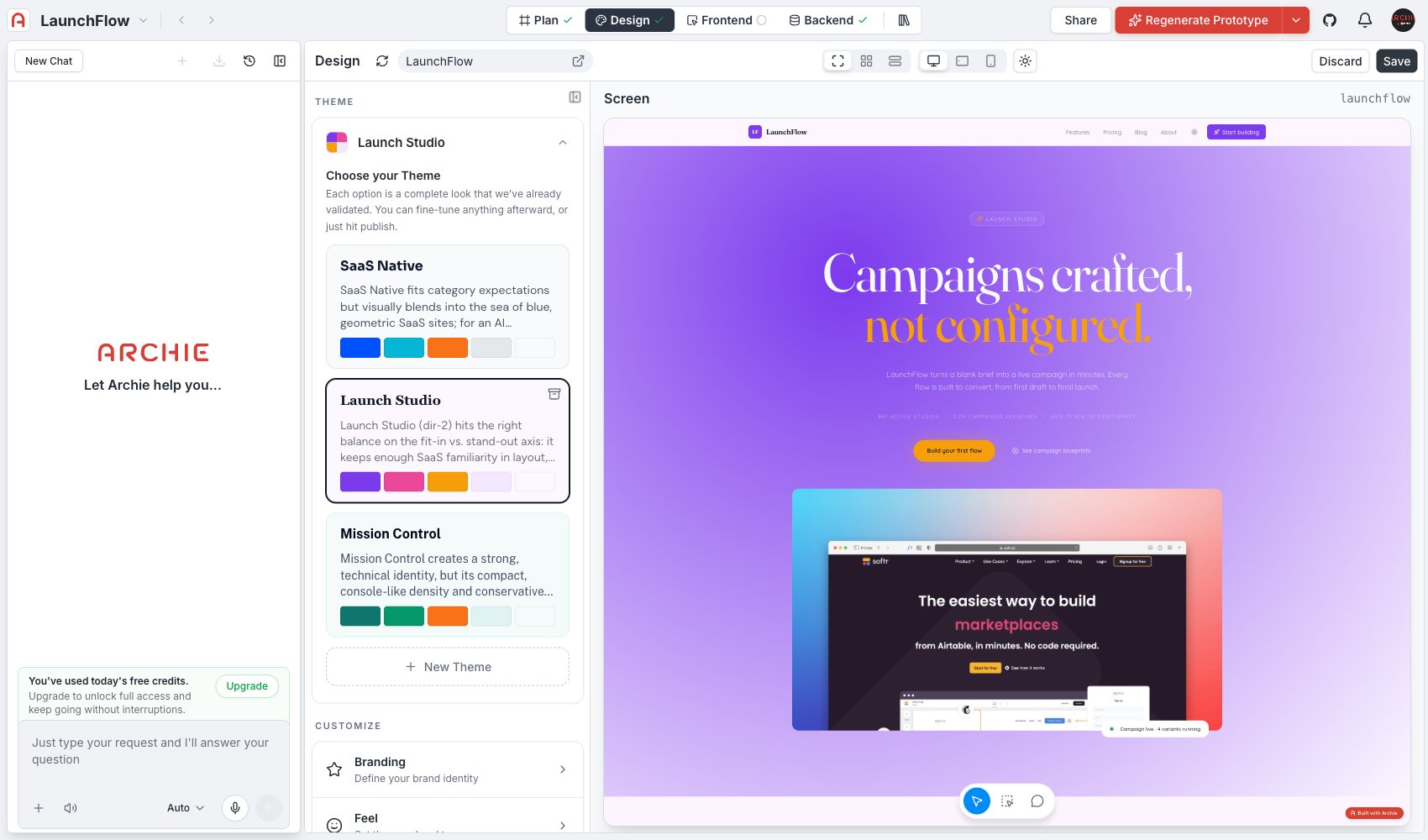
Each theme option is a full package — palette, typography, motion, and density — bundled into one card. Click a theme to apply it. The generated screens in Screens update immediately.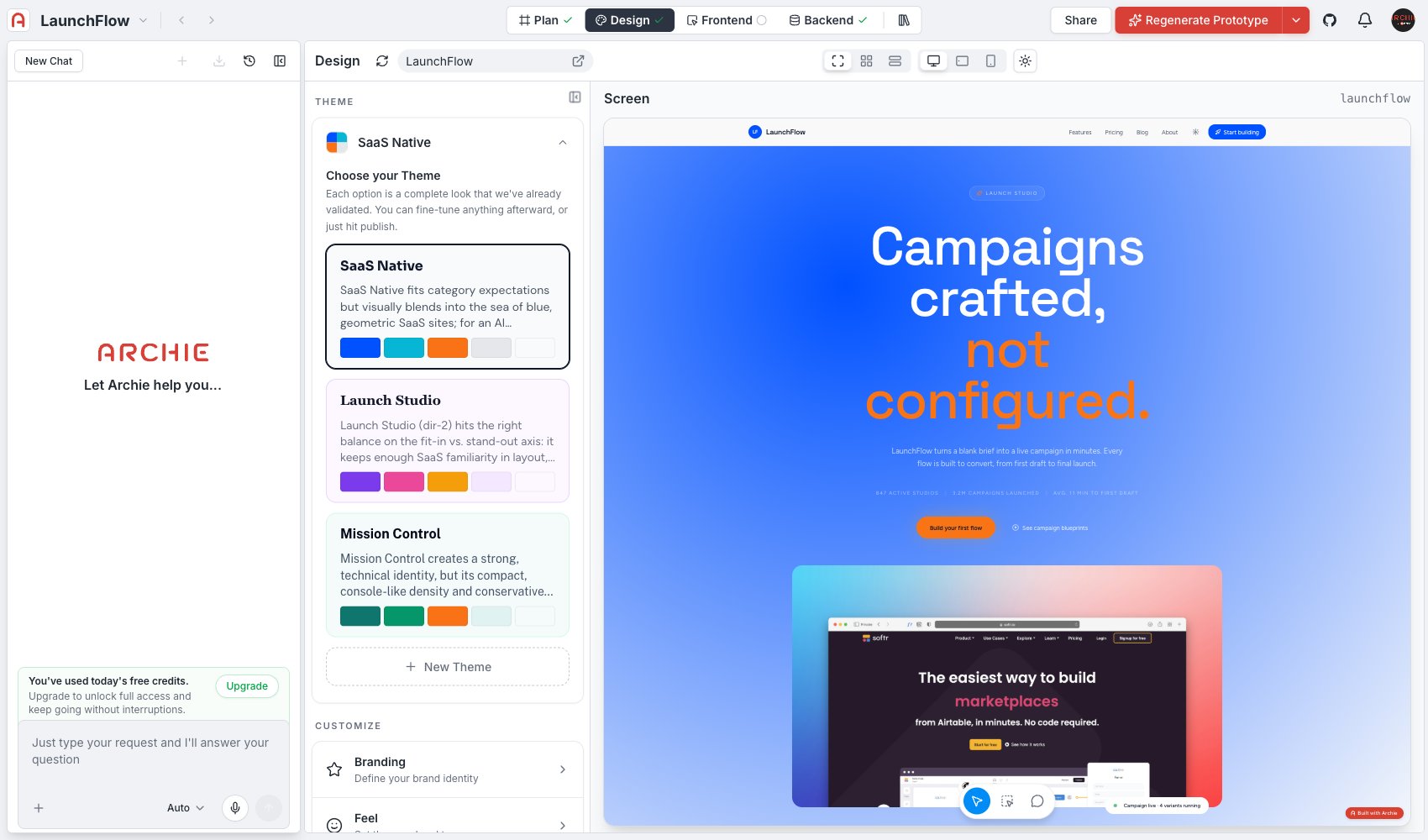
Generating alternatives
Click New Theme to generate additional options beyond the ones Archie starts you with. Each new theme explores a different point in the design space — for example, one alternative might keep the same brand positioning but swap a light, editorial look for a dark, high-contrast one.Archiving a theme
Themes you are not considering can be archived to keep the list focused. Archiving does not delete anything you have already applied — it just removes the option from the picker.After you pick a theme
Selecting a theme sets the starting values for every other section in this part of Design: Fine-tune any of them afterward — picking a theme is a starting point, not a lock-in. Changes you make in those sections do not create a new theme entry; they adjust the underlying values directly.FAQ
What happens to my customizations if I switch themes?
What happens to my customizations if I switch themes?
Switching to a different theme resets those values to the new theme’s defaults, overwriting manual adjustments you made in Branding, Feel, Read, Color, or Polish. Pick a theme close to what you want before fine-tuning.
How many theme options do I get to start?
How many theme options do I get to start?
Archie generates a small starting set tailored to your blueprint’s positioning. Generate more with New Theme whenever you want to explore a different direction.