

What a module looks like
Each module in the blueprint has a name, a short description, and a connection to the user types and services it uses. Modules are the building blocks the generator turns into pages, components, and APIs.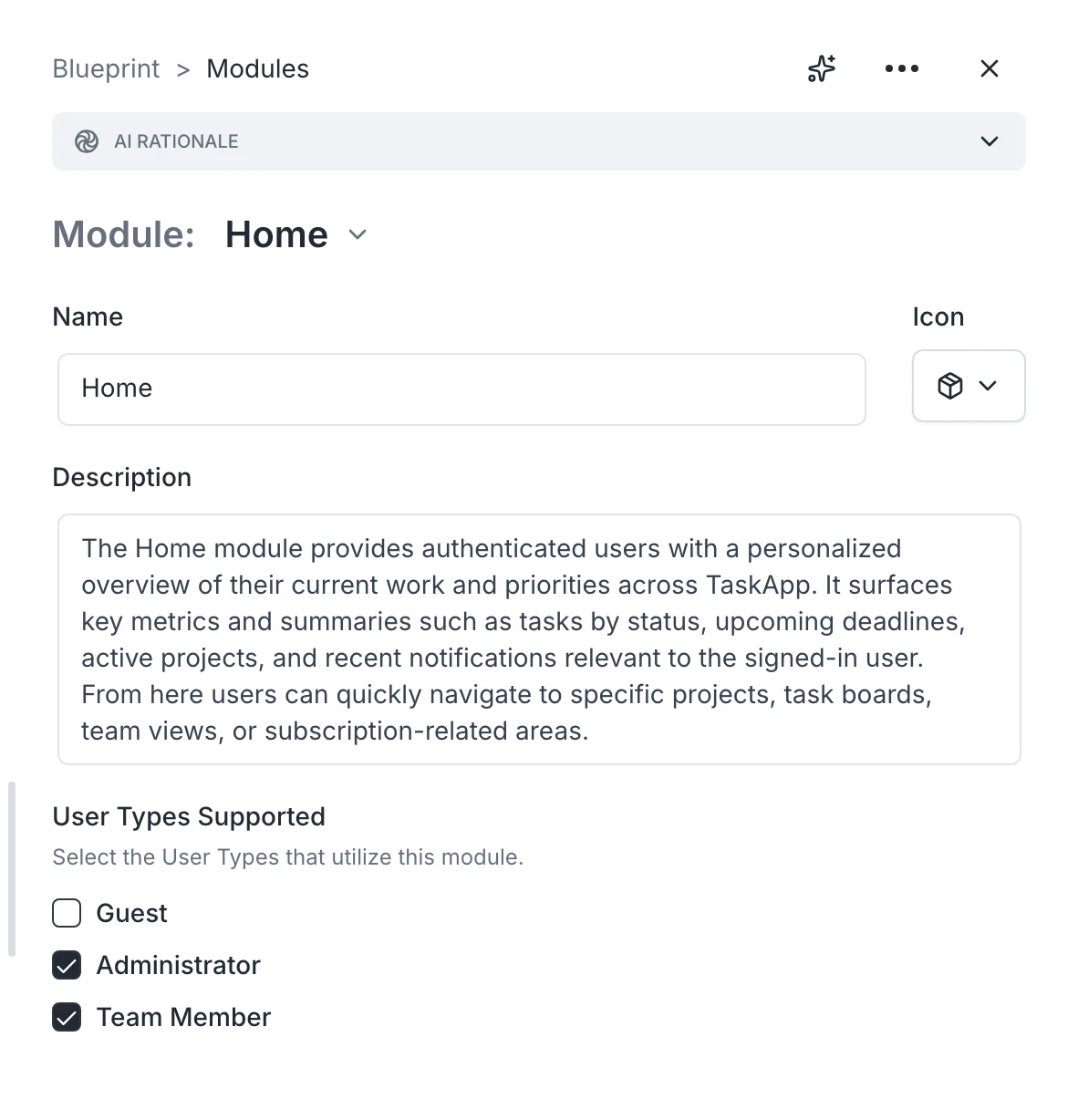
Adding a module
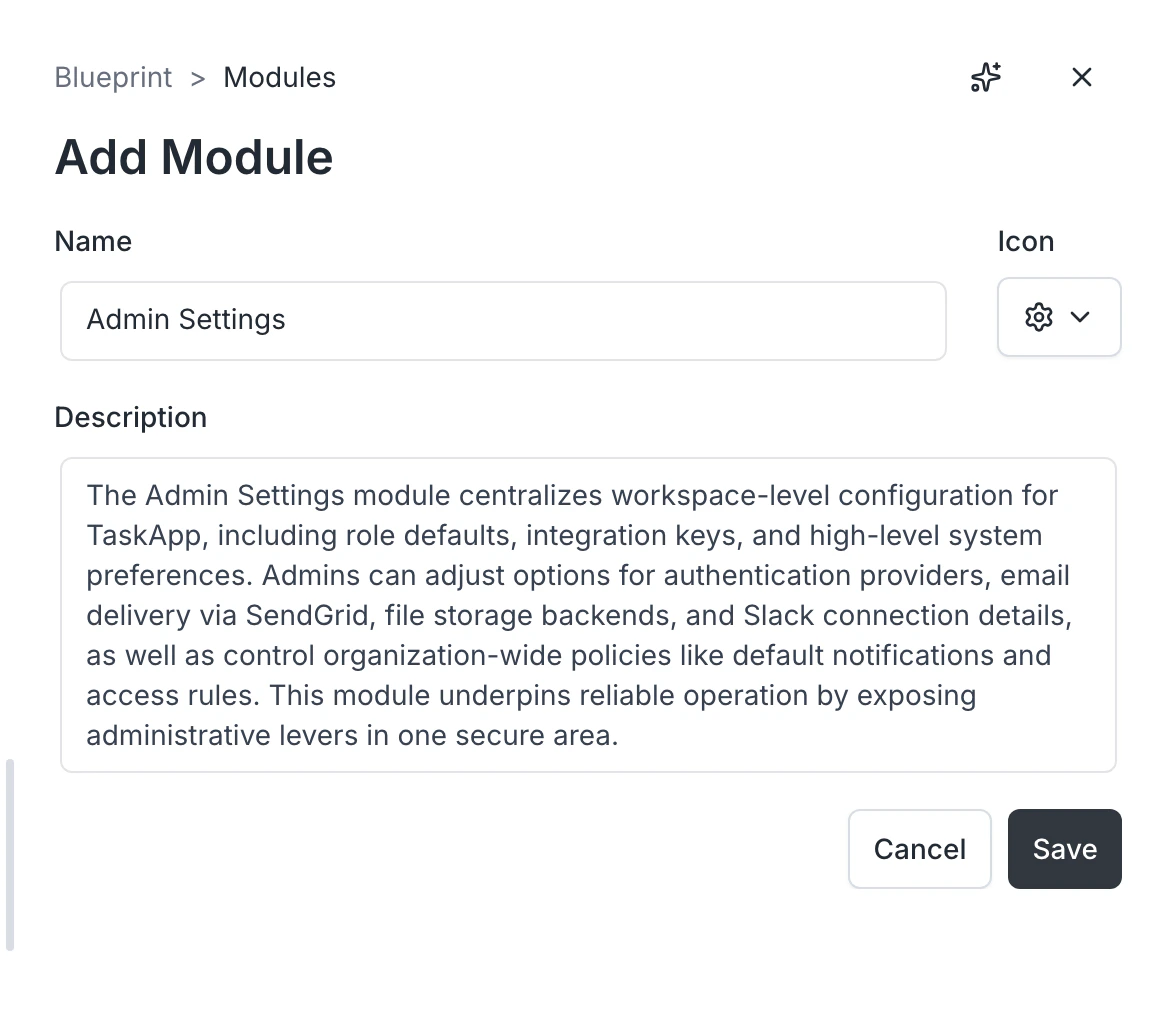
- Open the Modules card on the blueprint page.
- Click Add module.
- Type a name and a short description.
- Save.
Removing a module
Click the module to open it, then delete. Removing a module also removes references to it from related sections — for example, if a user type’s permissions referenced the module.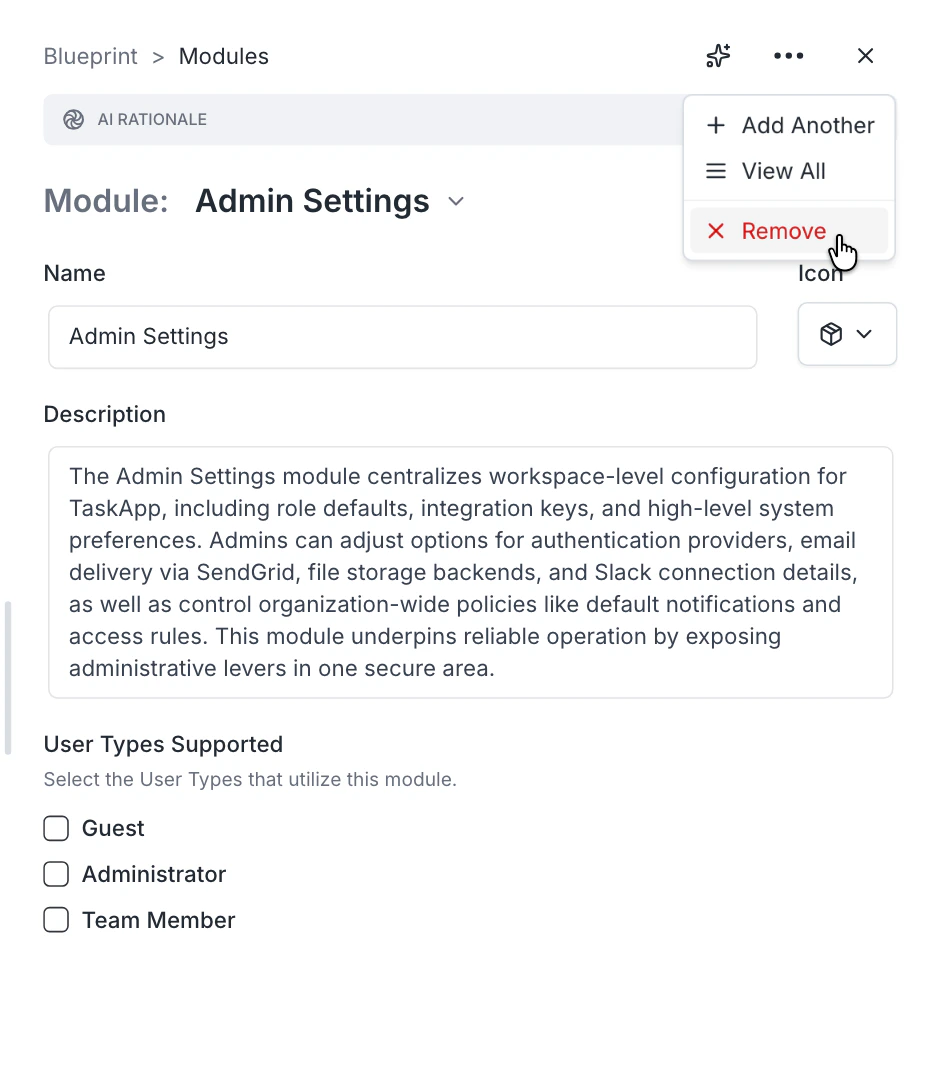
Refining a module
You can refine a module two ways:- Direct edit — open the module, change its name or description, save. Best for small changes.
- Blueprint chat — describe what you want (“the checkout module should support guest checkout, not just logged-in users”). The chat updates the module in place. Best for substantive changes.
Common patterns
- Split a vague module into two: “Account” → “User profile” + “Account settings.”
- Merge two related modules: “Notifications” + “Email preferences” → “Notifications.”
- Rename for clarity: “Admin stuff” → “Admin dashboard.”
- Drop anything you do not actually need yet — building it later is easier than removing it later.
FAQ
How many modules should an app have?
How many modules should an app have?
Most apps have between three and twelve. Anything beyond that suggests modules you should merge or features you can defer to a later build.
Will edits propagate to user types?
Will edits propagate to user types?
Edits do not auto-propagate. If you remove a module, check the related user types and update their permissions.