

What a user type defines
Each user type has a name, a description, and the modules or actions it can access. The generator uses user types to set up authentication, authorization, and the navigation each role sees.
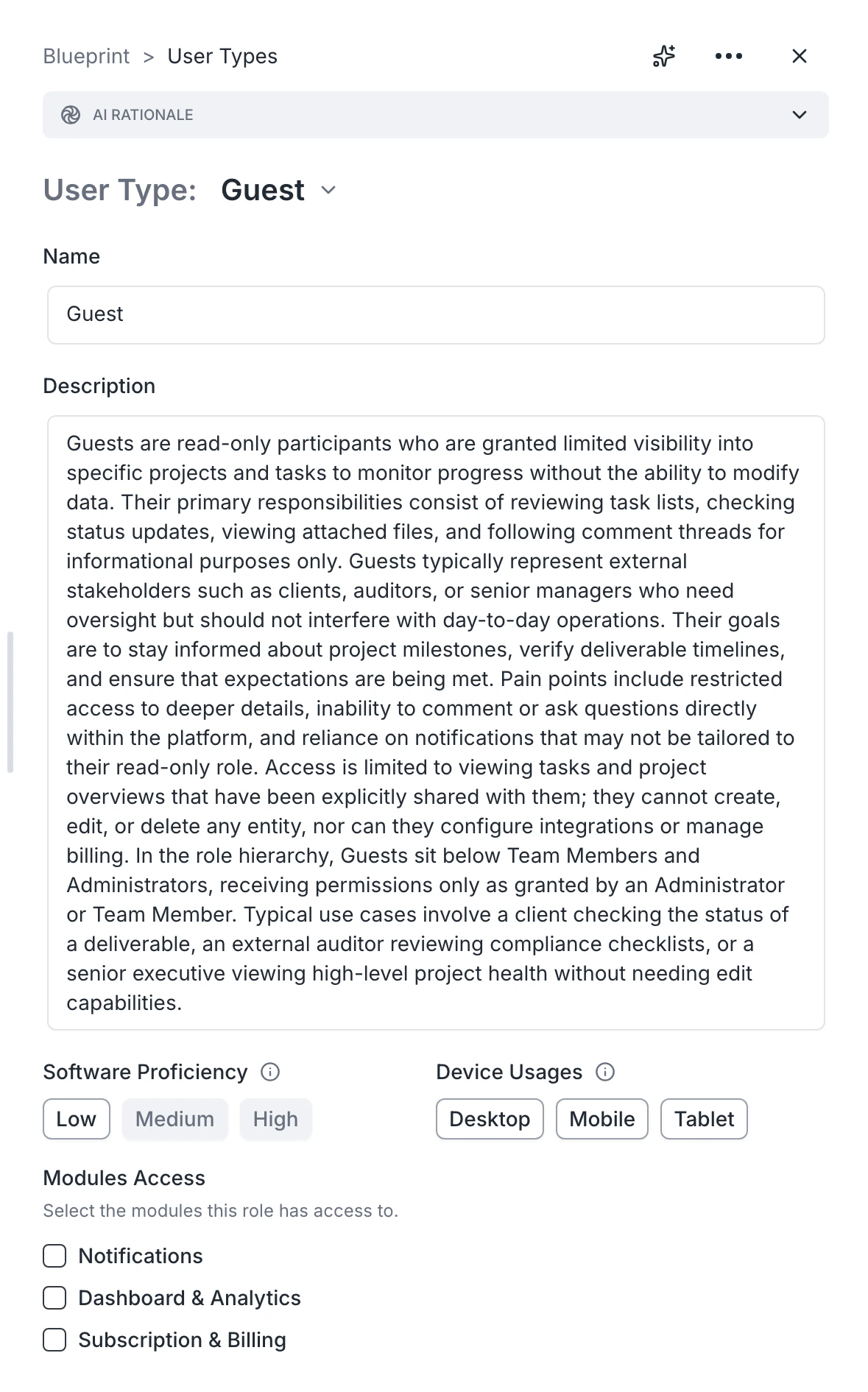
Adding a user type
- Open the User types card.
- Click Add user type.
- Provide a name, a short description of who this person is, and what they should be able to do.
- Save.
Removing a user type
Open the user type and delete. Modules that referenced this user type will lose those permissions — review them after deletion.Refining a user type
Use the description to spell out:- What this person sees on first login
- Which modules they can access
- Any actions they explicitly cannot do
- Whether they can invite others
Common patterns
- A B2C app often has End user and Admin.
- A marketplace usually has Buyer, Seller, Admin.
- An internal tool may have only Operator and Admin.
- Add a Guest user type only if unauthenticated visitors are part of your product.
FAQ
What happens if two user types overlap?
What happens if two user types overlap?
Archie generates the auth system based on each user type’s modules. Overlap is fine, but distinct names and descriptions make the result clearer.
How do I represent a free vs. paid tier?
How do I represent a free vs. paid tier?
Either as separate user types (“Free user” and “Paid user”) or as a single user type with a billing flag. Either works — the description matters more than the structure.
Can a user have multiple roles?
Can a user have multiple roles?
Yes, if the description says so. Be explicit (“a customer can also be a referrer earning commissions”).