

Open the variables
Open a service and select the Environment variables tab. The Shared badge on the tab tells you these variables aren’t specific to this service.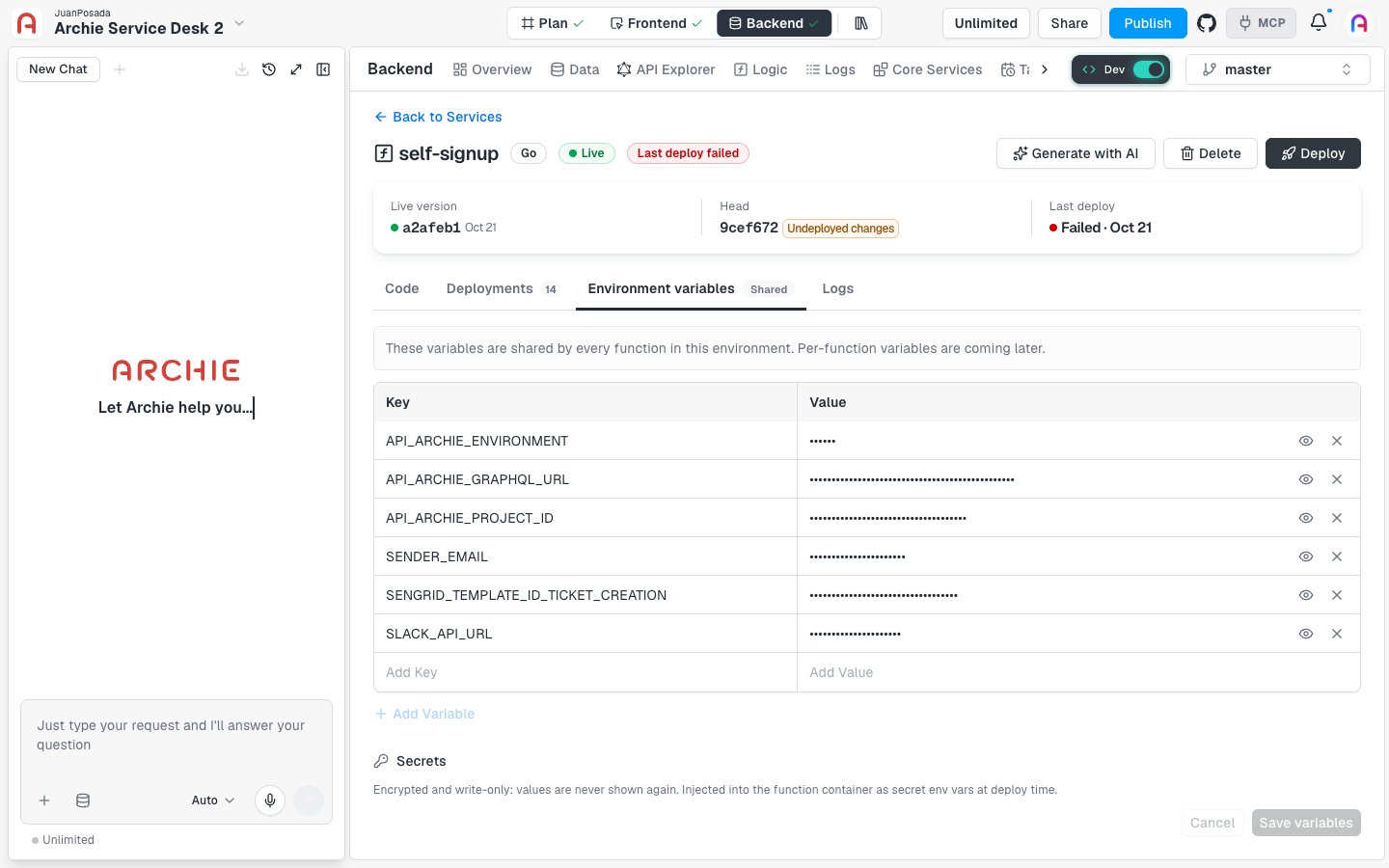
Shared with Settings
The tab shows the same variables as Backend → Settings → Environment variables. Both editors read and write the environment’s variables, so a change in one appears in the other. See Environment variables in Settings. Variables belong to an environment. A service inmaster receives the variables of master.
Add and edit variables
The Key and Value table lists your variables. Values are masked. Use the eye icon at the end of a row to show a value, and the X icon to remove the row.- Type a name in the empty Add Key field at the bottom of the table, and its value in Add Value. Or click Add Variable.
- Click Save variables.
Saving doesn’t change a running service. The new values reach the service the next time you deploy. The deploy’s Load environment variables step picks them up.
Secrets
Scroll down below the variables table to the Secrets section. It holds values that must stay private. Archie describes them this way: “Encrypted and write-only: values are never shown again. Injected into the function container as secret env vars at deploy time.” The section has its own Key and Value table. Existing secrets show their keys with masked values. Click Add Secret to add a row, then click Save variables, the same button that saves the variables above. Use secrets for API keys, tokens, and passwords.Read variables in your code
Your code reads variables the usual way for its language. In a Go service, for example,main.go reads the port with os.Getenv("PORT"). Use the exact key you entered, such as SENDER_EMAIL.
FAQ
Can one service have its own variables?
Can one service have its own variables?
Not yet. The tab states that per-function variables are coming later. For now, every service in the environment receives the same set.
Do variables carry over to other environments?
Do variables carry over to other environments?
Variables belong to one environment, and the tab shows the ones for the environment you selected. Check that each environment you deploy to has the variables your service needs. See Environments.
Why does my service still use the old value?
Why does my service still use the old value?
Variables are read when you deploy. Save the change, then click Deploy.