

Deploy a service
Click Deploy in the service header. The header shows Deploying and the progress, such as Deploying · 5/17, while the pipeline runs. You can keep working. Only one deploy runs at a time, so starting another while one is running shows the existing one. Each deploy builds Head, the latest commit. If you edited files, save them first. Changes you haven’t saved aren’t deployed. A failed deploy never replaces the live version. The service keeps running the last good commit.Deployment history
Open the Deployments tab. The number next to the tab is the count of deploys for this service.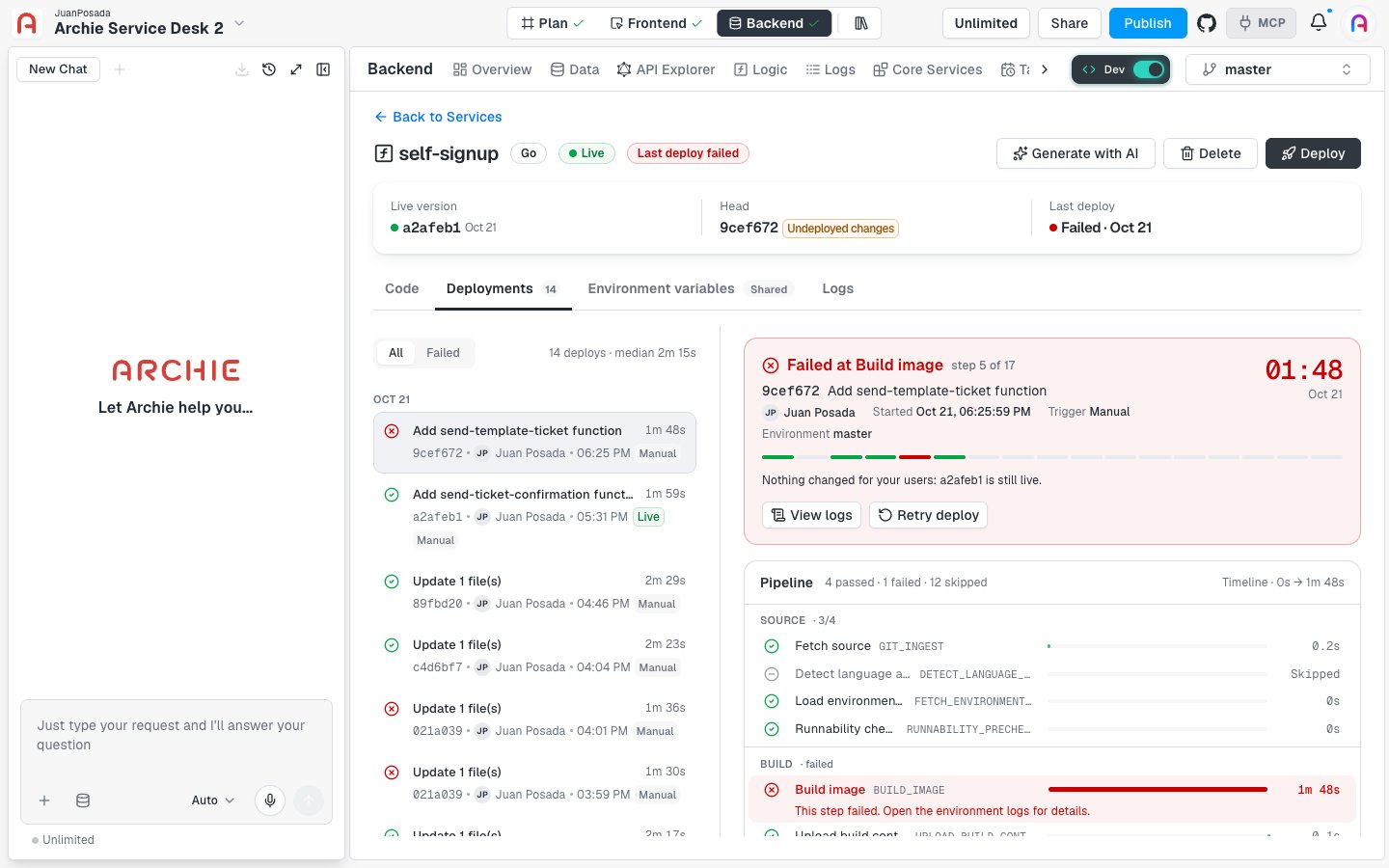
- The commit message and the short commit hash.
- Who started it and the time.
- The trigger, such as Manual.
- The duration.
- A Live label on the deploy that’s running now.
Deploy states
A successful deploy shows how long it was live and how it compares to the median, for example “16.3s faster than the median”.
The deploy pipeline
Every deploy runs the same steps, grouped into four stages. A successful run shows 17 passed.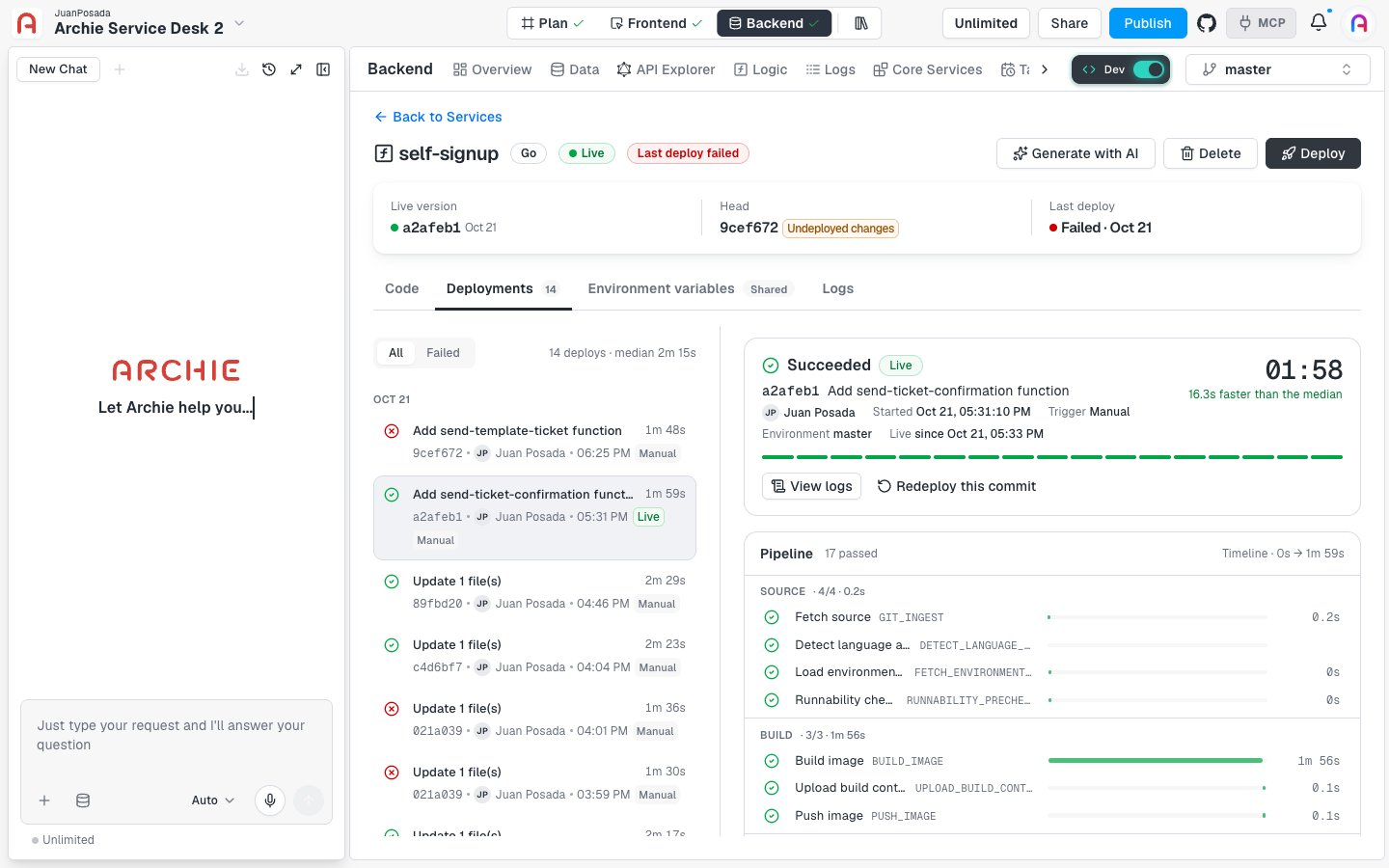
Some points about specific steps:
- Load environment variables reads the environment’s variables and secrets for this deploy.
- Register API and Reconcile GraphQL schema add the service’s operations to your project’s API. After a deploy, they appear in the GraphQL API Explorer.
- If a step finishes with a warning, the deploy continues. Open the logs for that step to read the details.
When a deploy fails
A failed deploy shows the stage and step that failed, for example Failed at Build image · step 5 of 17, and a red progress bar. Below it, Archie reminds you: “Nothing changed for your users: a2afeb1 is still live.” To find the cause:- Select the failed deploy in the list.
- Find the red step in the Pipeline and read its message. For a build failure, it reads “This step failed. Open the environment logs for details.”
- Click View logs to read the logs for the deploy. See also Logs.
- Fix the code in the Code tab and click Save.
- Click Deploy.
The GraphQL schema warning
If the Reconcile GraphQL schema step can’t finish, Archie still deploys the service. The service answers requests at its endpoint, but new operations may be missing from the API and from the API Explorer. Redeploying usually fixes it.Redeploy an earlier commit
To go back to a version that worked, open an earlier successful deploy and click Redeploy this commit. Archie asks you to confirm.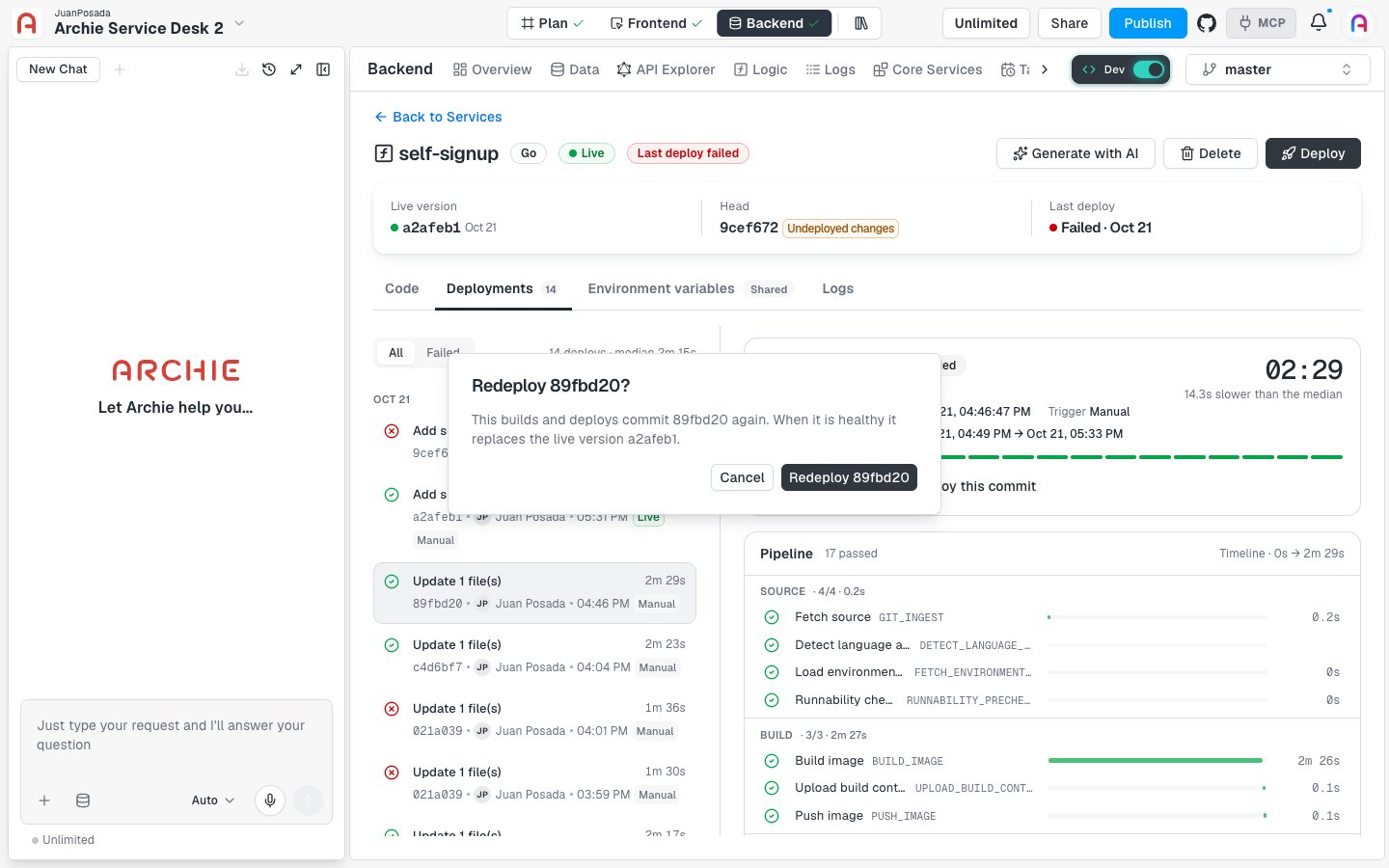
Deploys and environments
Each deploy lists the Environment it ran in, such asmaster. The service list and its deploy history are scoped to the environment selected in the Backend Console. If a service doesn’t appear after you switch environments, it belongs to another one. See Environments.
FAQ
Do I need to deploy after every save?
Do I need to deploy after every save?
No. Saving commits your change. Deploy when you’re ready for the change to go live. You can save several times and deploy once.
What happens to users while a deploy runs?
What happens to users while a deploy runs?
The current live version keeps running. It’s replaced only when the new deploy is healthy.
What if I click Deploy while a deploy is running?
What if I click Deploy while a deploy is running?
Only one deploy runs at a time. Archie tells you “A deploy was already running” and shows its progress instead of starting a second one.
How long does a deploy take?
How long does a deploy take?
It depends on the service. The deploy list shows a median for your own deploys. In the example above, the median is 2m 15s, and most of the time goes to the Build image step.