

Step 1: describe it
In the Add Logic dialog, select Add With AI and click Continue. The first step is titled Add Logic With AI and reads Step 1 of 2 · Describe It.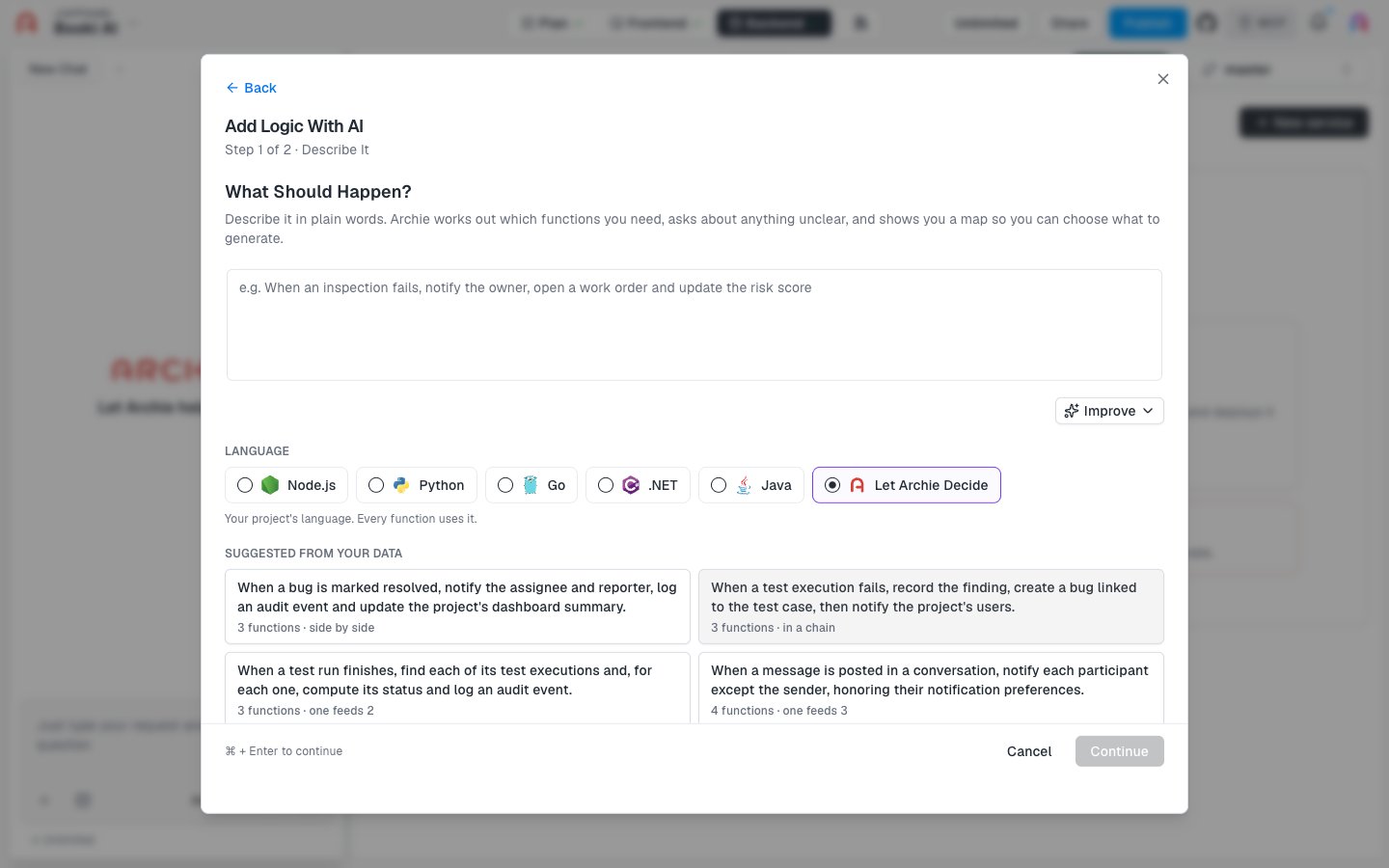
- Type what should happen in What Should Happen?. For example: “When an inspection fails, notify the owner, open a work order and update the risk score.”
- Optionally click Improve to refine your description.
- Choose a Language: Node.js, Python, Go, .NET, Java, or Let Archie Decide.
- Click Continue, or press ⌘ + Enter.
Suggestions from your data
Under Suggested from your data, Archie lists ready-made descriptions based on your data model. Each one shows how many functions it expects and how they relate, such as “3 functions · side by side” or “4 functions · one feeds 3”. Select one to fill in the description.Step 2: choose what to generate
The second step is titled Step 2 of 2 · Choose What to Generate. Archie summarizes how it understood your request and shows what it plans to build.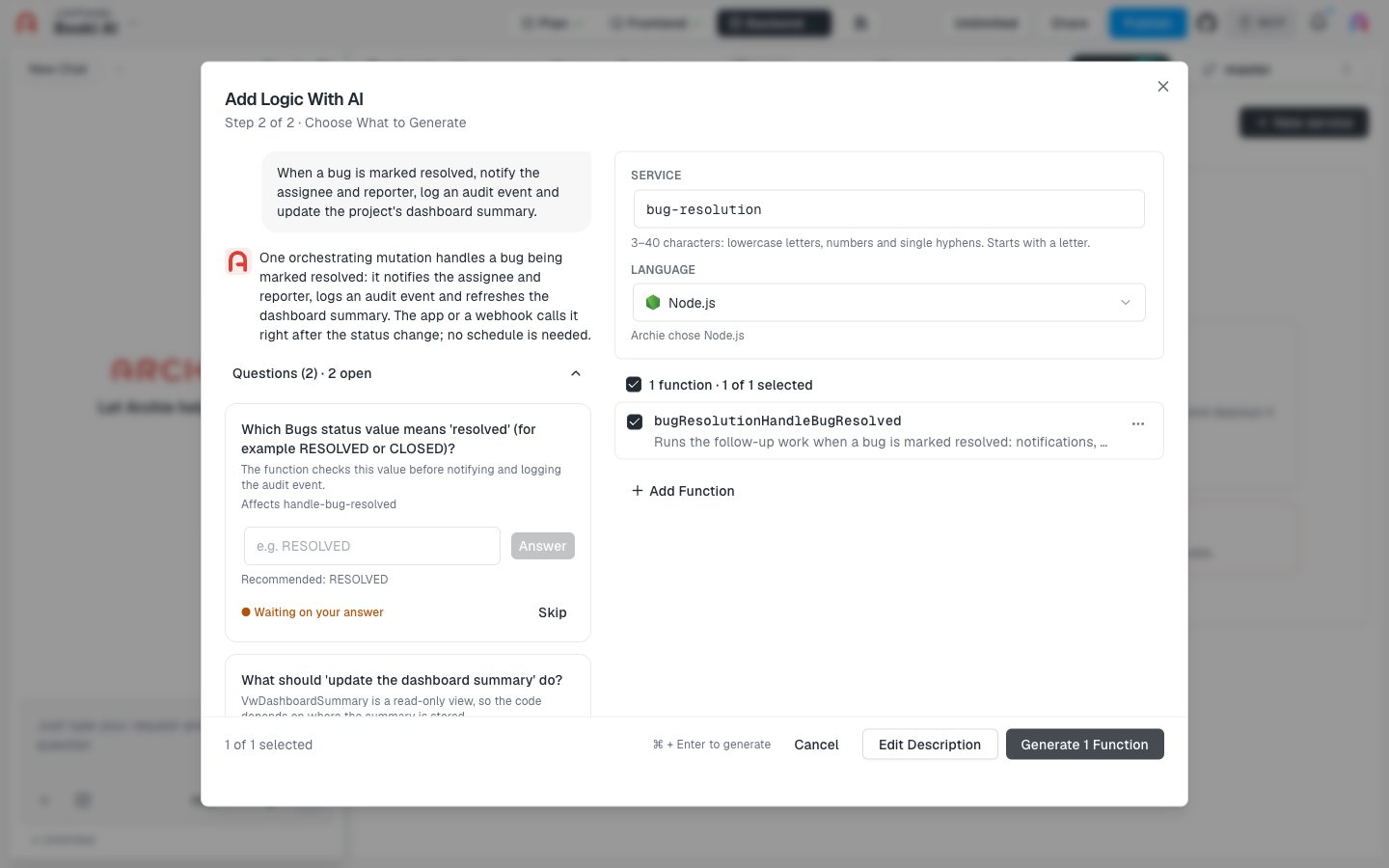
- Questions. When something is unclear, Archie asks. A question offers options, or a text box with an Answer button, and Archie marks its recommendation. Answer it, or click Skip.
- Service. The service name Archie proposes, such as
bug-resolution. Names are 3–40 characters: lowercase letters, numbers, and single hyphens, starting with a letter. You can edit it. - Language. The language Archie chose, or the one you picked. You can change it.
- Functions. Each function has a checkbox and a short description. Clear the checkbox for any function you don’t want. Click Add Function to add one of your own.
Archie generates only the functions you leave selected. Nothing is created until you click Generate.
After you create the service
After Archie generates the functions, open the service. Review the code in the Code tab, then deploy it to make the functions callable. Set any environment variables the code needs before you deploy.FAQ
Why do the suggestions mention my own tables?
Why do the suggestions mention my own tables?
Suggestions are built from your data model, so they reference the tables and fields in your project.
Can I create more than one service?
Can I create more than one service?
Not yet. Each project can have one service. See Logic.
What if I want to start from code instead?
What if I want to start from code instead?
Use From Scratch or From a Code Repository.