

Open the page
Go to Backend → Settings → Environment Variables. The Settings section is at the end of the Backend Console navigation. Its sidebar has a Project group with API Keys, Environment Variables, Network, and Danger Zone.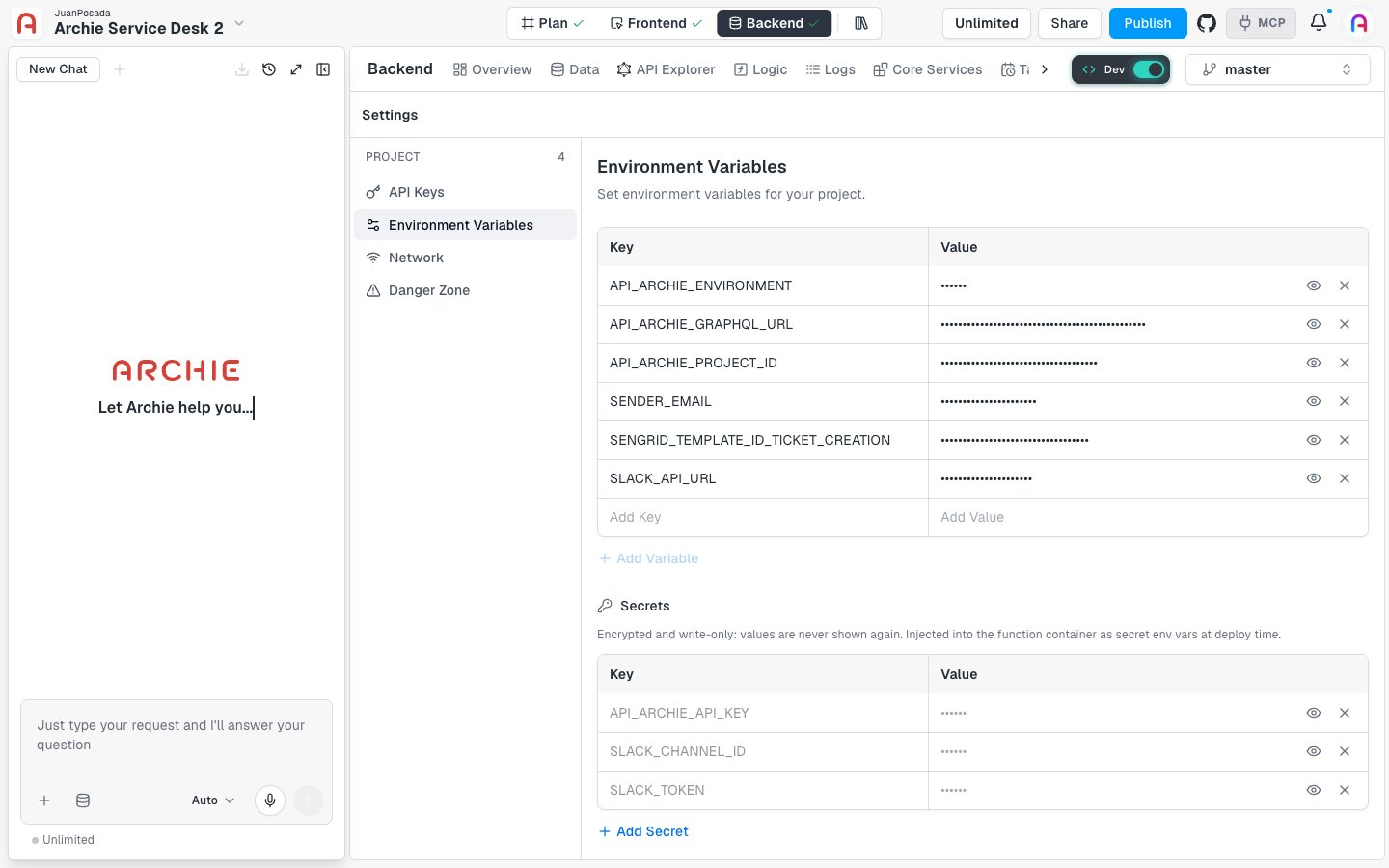
master. Switch environments to see that environment’s variables.
Variables
The first table lists your variables by Key and Value. Archie masks every value. Each row also has an eye icon and an X icon.Add a variable
- Type a name in the empty Add Key field at the bottom of the table.
- Type its value in Add Value. You can also click Add Variable to add a row.
- Save your changes.
Edit or remove a variable
- To change a value, edit it in its row and save.
- To remove a variable, click the X icon at the end of its row and save. Archie asks you to confirm before it permanently deletes the values.
Secrets
Scroll down to the Secrets section. Archie describes secrets as “Encrypted and write-only: values are never shown again.” Archie injects them into the service container as secret environment variables at deploy time. Use secrets for API keys, tokens, and passwords. The table lists the names of the secrets you stored, with masked values.Add a secret
- Click Add Secret.
- Enter a name and a value. Both are required.
- Save your changes.
If you delete every secret, services that read them fail after their next deploy.
When changes take effect
Saving updates the stored values. It doesn’t restart a running service. Services pick up the new values the next time you deploy them. After you save, open the service and click Deploy. See Deployments. If you leave the page with unsaved changes, Archie warns you and lets you save or leave without saving.Where the variables are used
- Logic services. Every service in the environment receives these variables when it deploys. The Environment variables tab of a service shows the same list. See Logic environment variables.
- New environments. When you create an environment, you can choose to copy its variables, keys and values included. See Creating an environment.
FAQ
Are my values encrypted?
Are my values encrypted?
Archie describes secrets as encrypted and write-only. It doesn’t make that claim for plain variables, which it masks in the editor. Put anything sensitive in Secrets.
Can I see a secret again after I save it?
Can I see a secret again after I save it?
No. Secrets are write-only. To change one, enter a new value.
Can one service have its own values?
Can one service have its own values?
Not yet. The service’s own Environment variables tab says per-function variables are coming later.
Where do I put credentials for Stripe, SendGrid, and other integrations?
Where do I put credentials for Stripe, SendGrid, and other integrations?
Use the integration’s own settings. See Integrations.