

Providers
The Providers tab lists the providers your apps can use: Anthropic, OpenAI, and Google. Each provider has an on/off switch and shows Disabled until you turn it on. Archie manages the keys and bills AI credits.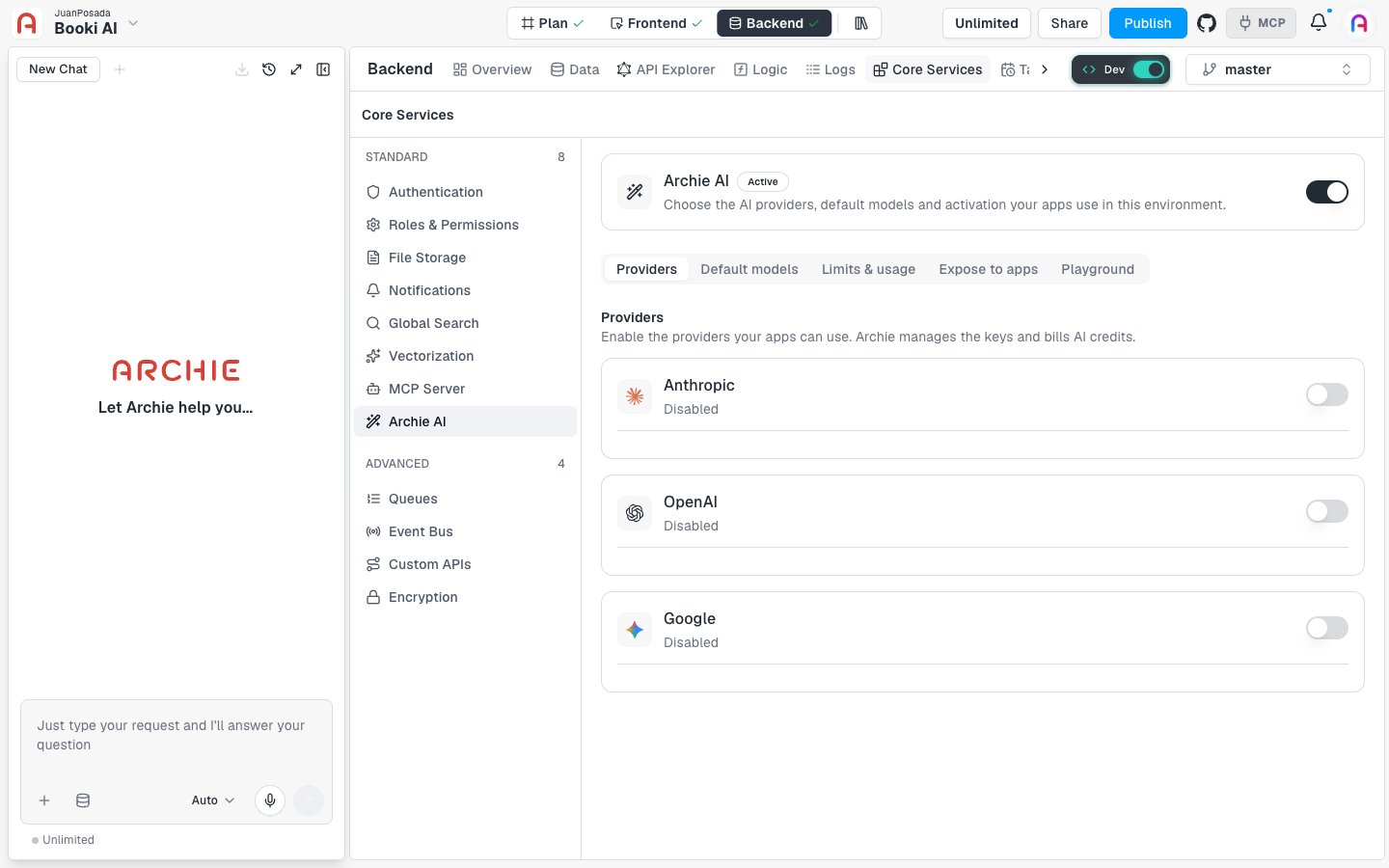
Use your own key
On an Enterprise plan, you can bring your own provider key:- Enable the provider and click Use your own key.
- Enter the key in the API key field and click Save key.
Default models
The Default models tab sets the models your apps get when a request doesn’t name one. Only active models from enabled providers can be chosen.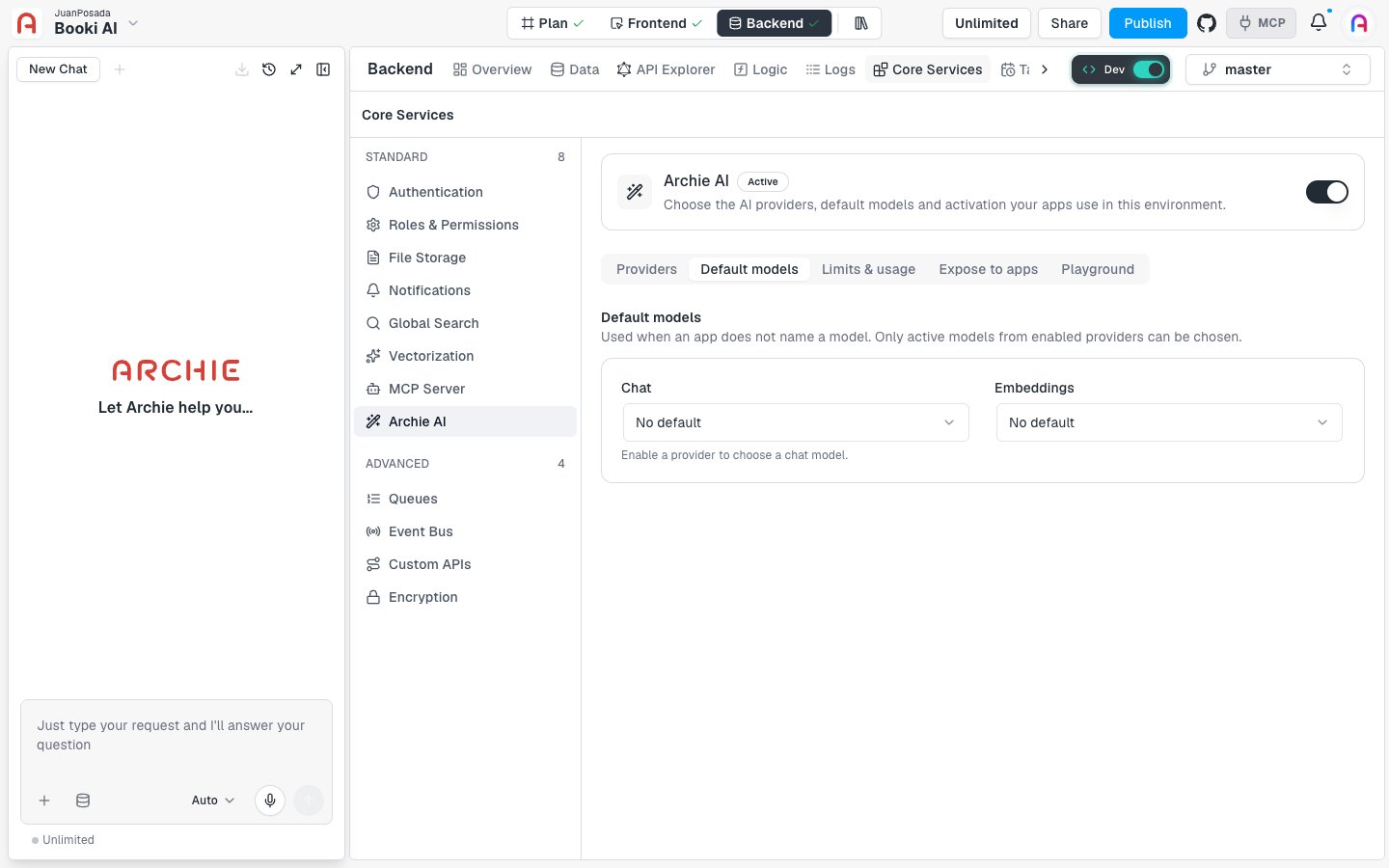
- Chat sets the default chat model. Until you enable a provider, the tab shows “Enable a provider to choose a chat model.”
- Embeddings sets the default model for generating embeddings.
FAQ
Why is the Chat selector empty?
Why is the Chat selector empty?
You need at least one enabled provider before you can choose a chat model.
Does my choice here affect requests that name a model?
Does my choice here affect requests that name a model?
No. Defaults apply only when an app doesn’t name a model.