

Opening the plan chat
The plan chat is available from the plan page. Open it from the side panel. The chat scrolls beside the plan, so you can watch sections update as you talk to it.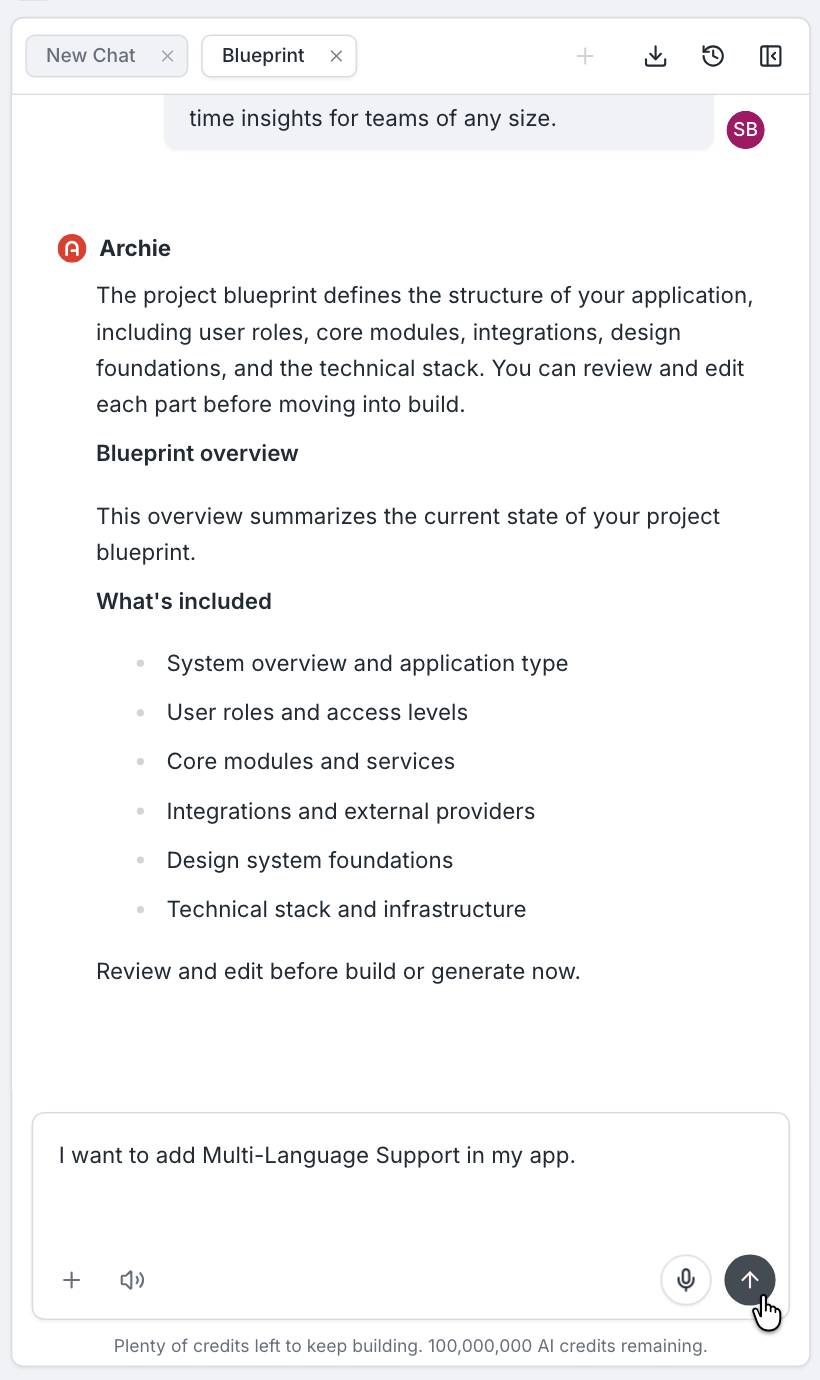
What it does well
- Multi-section changes — “drop the messaging module, simplify the user types to just admin and customer, switch from Stripe to Lemon Squeezy.”
- Refinements — “the checkout module should support guest checkout.”
- Asking questions — “what does the admin user type include right now?”
- Trying alternatives — “show me what this would look like with a marketplace structure instead of a single-tenant app.”
How to phrase changes
Describe what you want, not what to do step-by-step. The chat understands the plan structure and will edit the right sections. Examples:- Good: “Make this an internal tool — drop the public marketing pages.”
- Good: “Add a billing dashboard for admins.”
- Avoid: “Open the modules card. Click the Marketing module. Click delete.” (verbose; not necessary)
Conversation history
The chat keeps a history of your conversation. You can scroll back, pick up where you left off, or start a new conversation thread.When direct edit is better
If you are doing a small, surgical change (rename a module, tweak a description), just edit the section directly. The chat is for changes that touch several places at once.FAQ
Does the chat run a build?
Does the chat run a build?
No. The chat edits the plan. Generation is explicit — you trigger Prototype, Frontend, or Backend generation from the Generate menu.
Will the chat lose my place if I refresh?
Will the chat lose my place if I refresh?
No. The chat reconnects automatically. Conversation history persists across reloads.
What if the chat's change is wrong?
What if the chat's change is wrong?
Tell it. The chat is conversational — “no, keep the messaging module, just simplify it” is fine.