

Query Editor
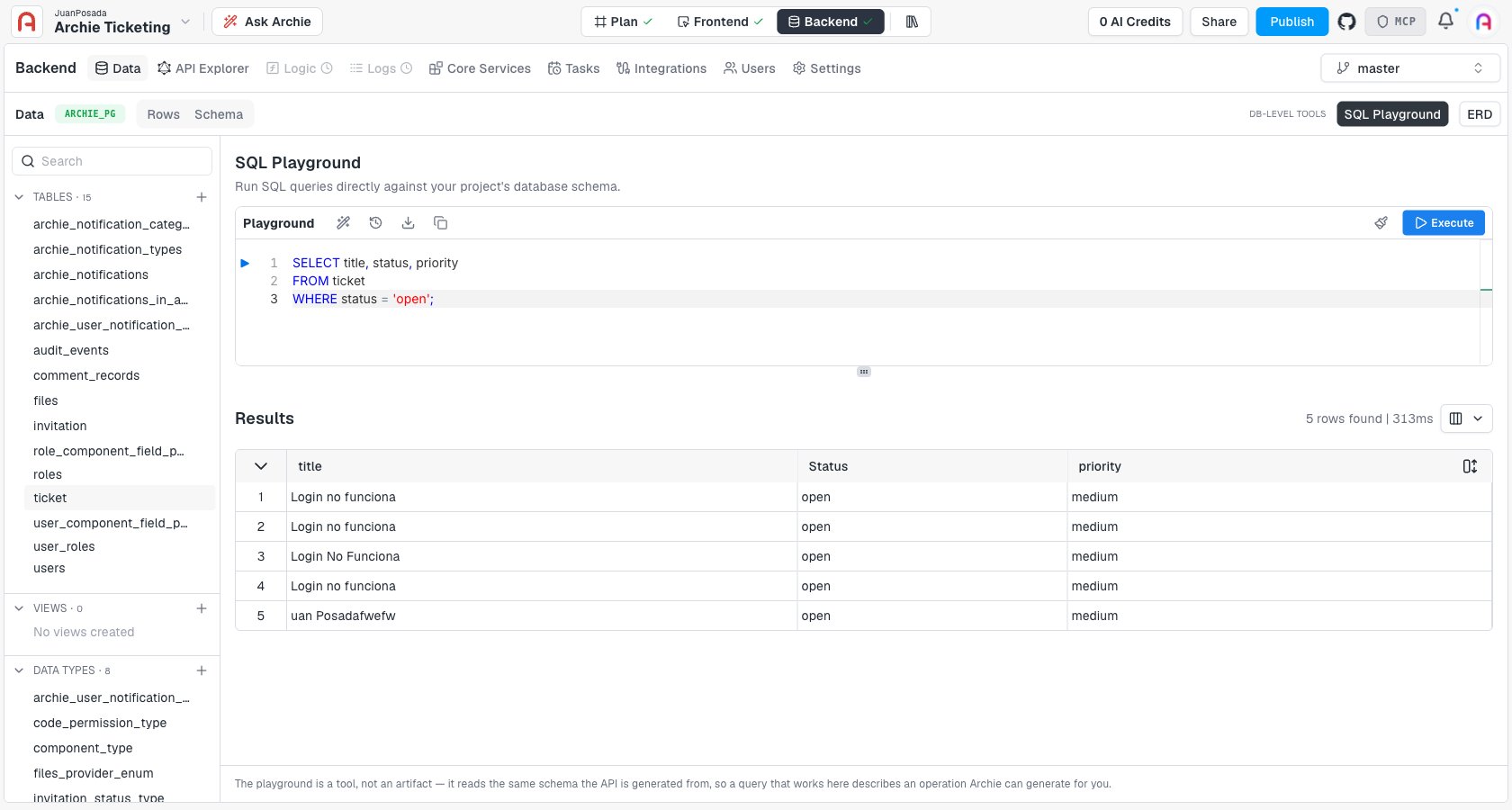
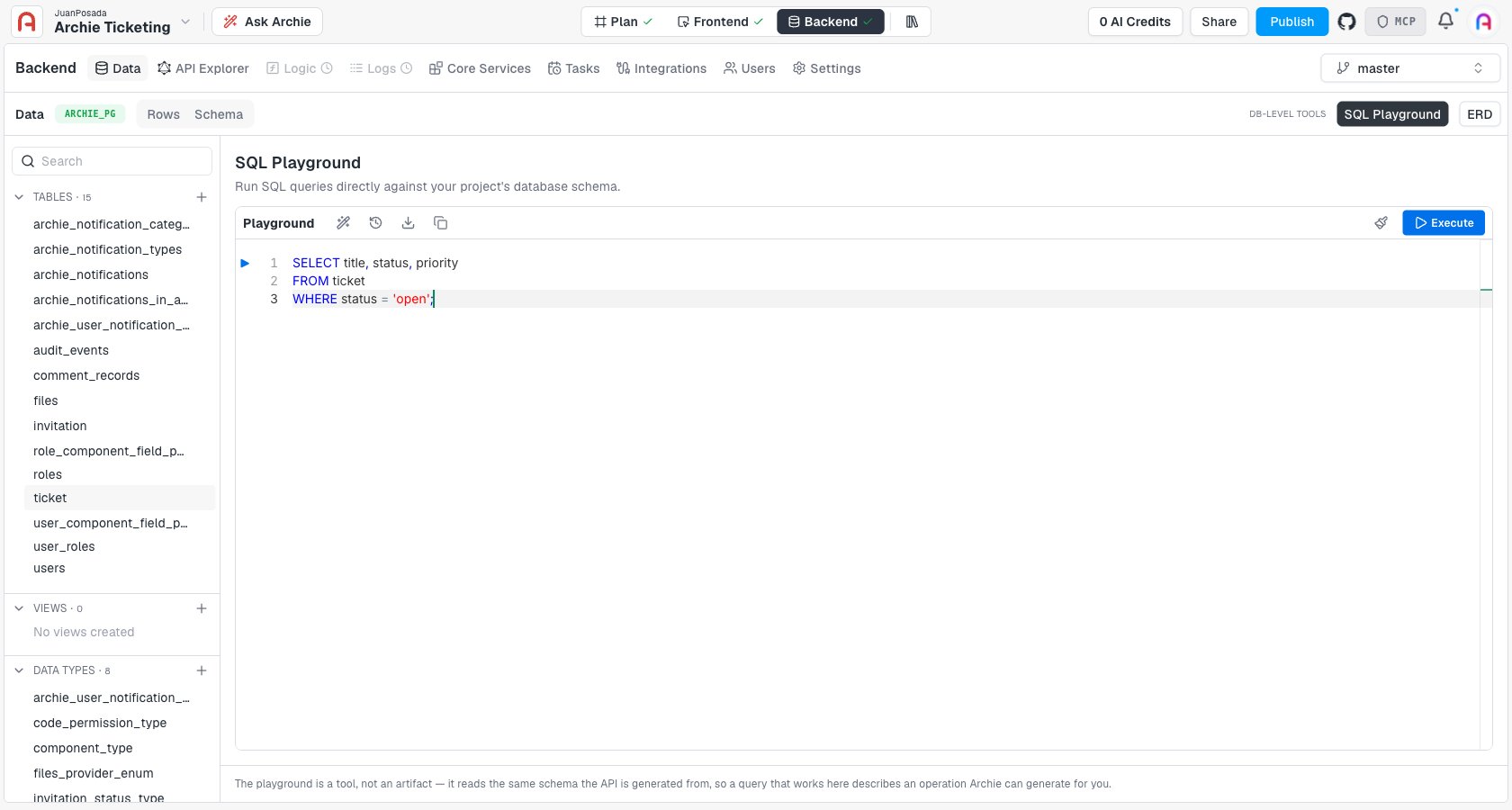
The main “Playground” area allows you to write standard SQL statements. You can perform simpleSELECT queries or complex JOIN operations (e.g., linking students with cities).
Execution Methods
There are multiple ways to execute your code, giving you flexibility depending on your workflow:- Line Execution: Click the Blue Play Triangle (▶) located in the gutter next to a specific line number to run just that statement.
- Context Menu (Right-Click): Right-click anywhere in the editor to open a menu where you can select Execute SQL Query.
- Keyboard Shortcut: Press
Ctrl + Enter(⌘ + Enteron Mac) to execute the query immediately without using the mouse. - Execute Button: Click Execute in the top-right corner of the editor.
Toolbar Actions
The toolbar at the top of the editor provides tools to manage your code: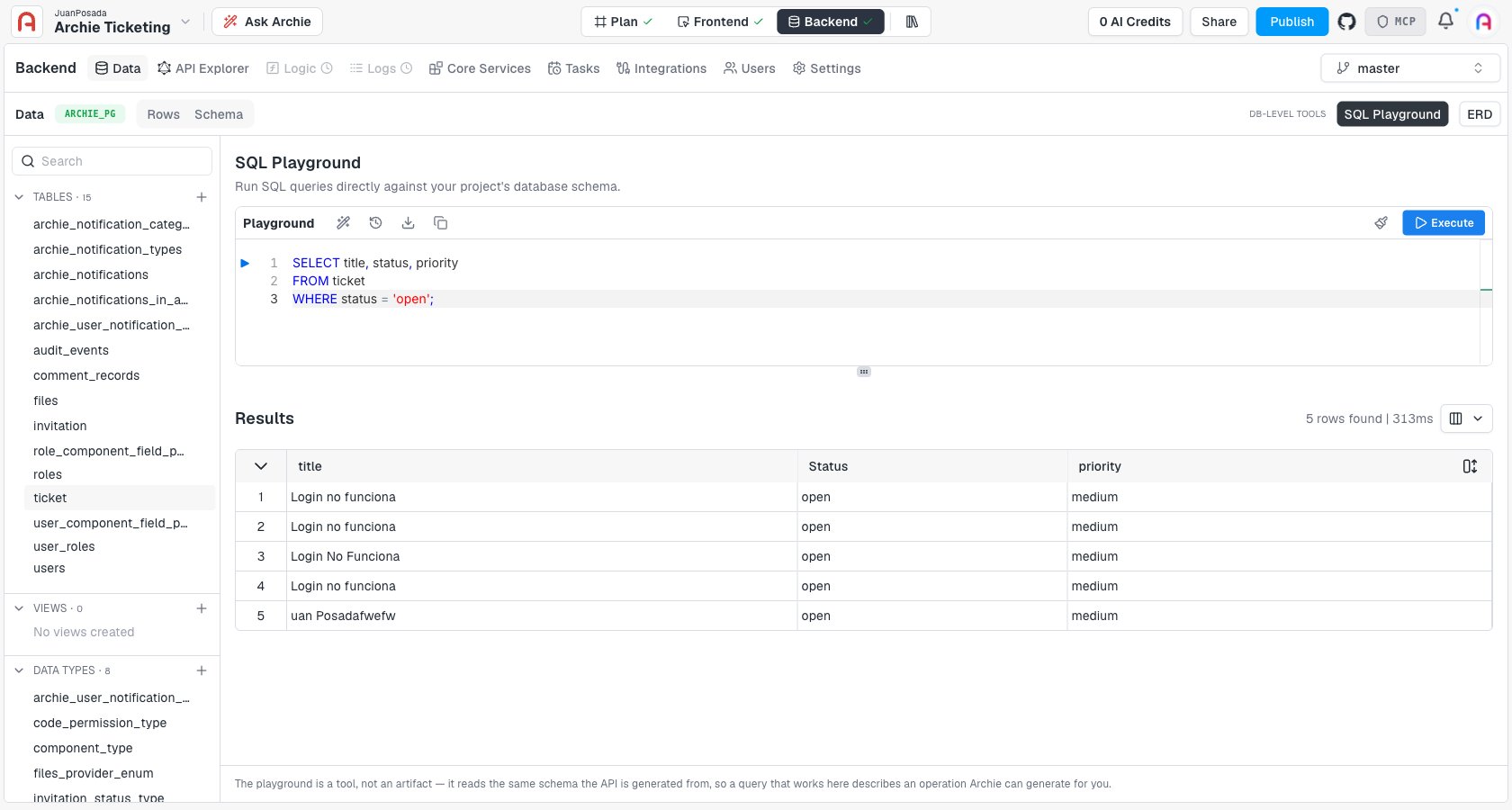
- Format SQL: Use the Magic Wand icon to automatically format and indent your SQL code for better readability.
- Query History: Access a log of your previously executed queries.
- Download SQL: Download the current queries to your local machine.
- Copy SQL: Use the Copy icon to copy the editor’s content to your clipboard.
- Clear Editor: Use the Broom icon to clear or delete all queries from the editor.
Results Panel
The Results section at the bottom displays the output of your execution.- Data Grid: The data is presented in a table format with columns corresponding to your query.
- Row Count and Timing: The number of records returned and the query runtime are displayed in the top right (e.g., “5 rows found | 313ms”).
- Column Visibility: You can customize the view by clicking the column selector icon in the results header to toggle specific columns on or off.
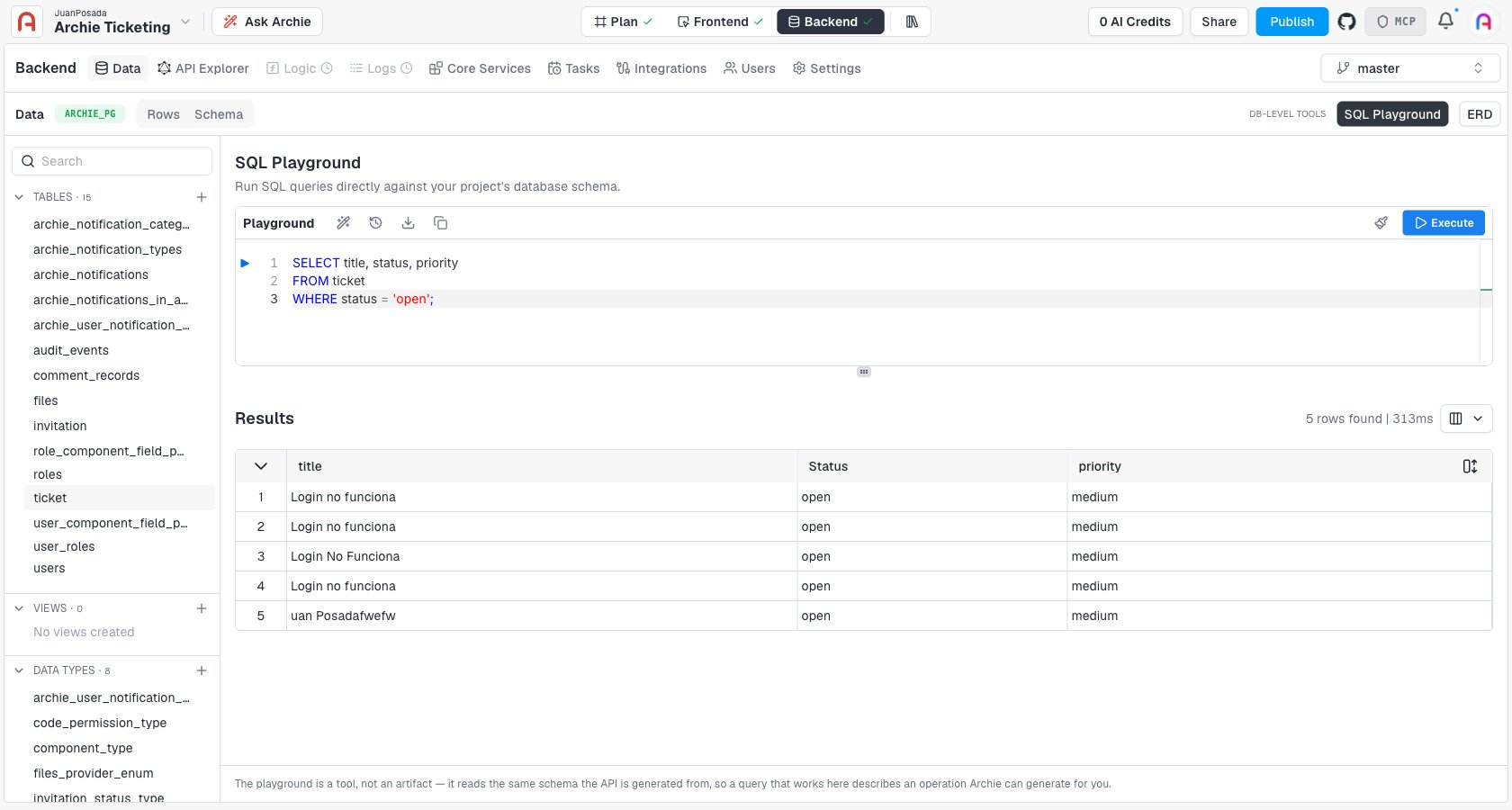
The playground is a tool, not an artifact — it reads the same schema the API is generated from, so a query that works here describes an operation Archie can generate for you.
DDL statements
Schema changes (CREATE, ALTER, DROP) are not executed in the playground — they belong in the Data workflow which produces tracked migrations.Per-environment data
The playground binds to the active environment. Switch environments to query staging or production data. Production access is typically restricted to admin roles.Best practices
- Use transactions for multi-statement writes —
BEGIN; ...; COMMIT; - Limit destructive queries — always test with a
WHEREclause first - Use
EXPLAINto inspect query plans for slow reads - Avoid manually inserting rows that should go through the application layer (validation, hooks)
FAQ
Are my queries logged?
Are my queries logged?
Yes. Audit logs include the actor, query, and runtime.
Can I run reports on a schedule?
Can I run reports on a schedule?
Use a custom function with a scheduled trigger and put the SQL there.